Purpose
This article explains how to export report data to Microsoft Excel from the Reports page. You can apply filters to narrow down the results and select which fields should be included in the exported file.
Instructions
Step 1: Navigate to the Reports Page
- Open the web application.
- Navigate to Reports from the main menu.
Step 2: Apply Report Filters
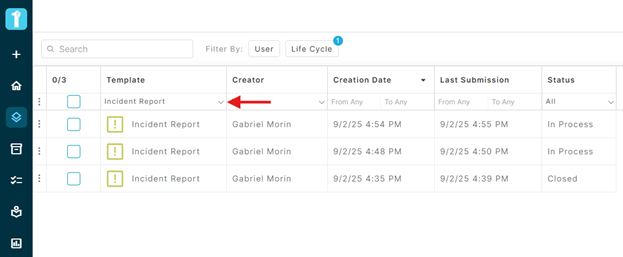
- Use the available column filters to define the data you want to export.
- For example, set Category to Incident Report.
- Apply any additional filters as required.
Step 3: Open the Export Menu
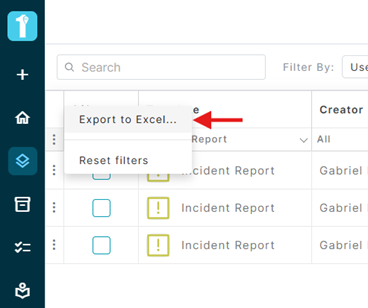
- Click the three dots (⋮) located in the upper-left corner of the report.
- Select Export to Excel.
Step 4: Select Export Fields
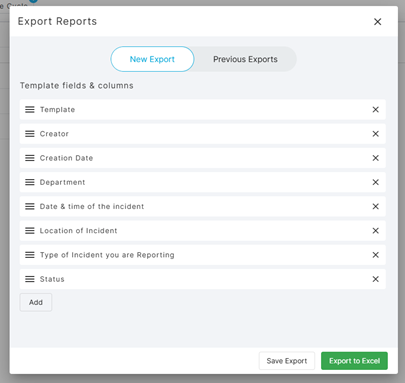
- Choose the data fields that you would like to include in the Excel file.
- Review your selection to ensure all required information is included.
- Confirm the export.
Step 5: Download the Excel File
Once the export is generated, the Excel file will be downloaded to your computer.
Saving and Reusing Export Templates
When creating an export, you can save your selected field configuration as an export template.
The templates saved can be accessed later under Previous Exports, allowing you to quickly reuse the same export configuration without having to select the fields again.
Frequently Asked Questions
Can I export only specific records?
Yes. Apply the desired filters before starting the export. Only records matching the selected filters will be included.
Can I reuse a previous export configuration?
Yes. Saved export templates are available under Previous Exports and can be reused whenever needed.
Will my filters affect the exported data?
Yes. The export will only include records that match the filters currently applied to the report.
Was this article helpful?
That’s Great!
Thank you for your feedback
Sorry! We couldn't be helpful
Thank you for your feedback
Feedback sent
We appreciate your effort and will try to fix the article