Adding a New User
Purpose
This article explains how to create a new user account from either the web platform or the mobile application.
Prerequisites
- You must have System Administrator permissions to create new users.
- The user must have a valid email address to receive their invitation.
Browser Instructions
Step 1: Navigate to the Team Page
- Open the web application.
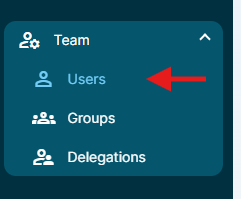
- Navigate to Team -> Users from the navigation panel.
Step 2: Add a New User
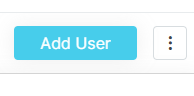
- Click the Add User button in the top right corner.
Step 3: Complete the User Information Form
- Enter the user's information.
- Complete all required fields.
Step 4: Save and Send the Invitation
- Click Save and Invite.
- The user account will be created and an invitation email will be sent to the user.
Mobile Instructions
Step 1: Open the Users List
- Open the mobile application.
- Open the side navigation panel.
- Tap Team.
- Tap Users.
Step 2: Add a New User
- Tap the + button located in the upper-right corner of the screen.
Step 3: Complete the User Information Form
- Enter the user's information.
- Complete all required fields.
Step 4: Save and Send the Invitation
- Tap Save and Invite.
- The user account will be created and an invitation email will be sent to the user.
Important Notes
User Information Form Customization
The fields displayed in the User Information form can be customized. As a result, the fields shown in your environment may differ from the examples shown in this article.
Frequently Asked Questions
Why can't I see the Add User button?
The Add User button is only available to users with System Administrator permissions.
Will the user receive an email invitation?
Yes. Selecting Save and Invite creates the account and sends an invitation email to the user's registered email address.
Why does my User Information form look different?
Your organization may have customized the User Information form. Additional fields, different field names, or required fields may be configured in your environment.
Was this article helpful?
That’s Great!
Thank you for your feedback
Sorry! We couldn't be helpful
Thank you for your feedback
Feedback sent
We appreciate your effort and will try to fix the article